 Mailwake
Start with the Core console open. This tutorial watches a work mailbox's Clients folder and sends notifications through Bark. You will verify the complete flow with a new email.
1. Create an administrator
On first launch, find the setup code in
docker compose logs --tail=50 core, enter it in the
console, and create a password of at least 12 characters. If setup
is complete, sign in with your existing administrator password.
Check the result: the setup wizard or overview opens. You can configure mailboxes and notifications separately.
2. Add a mailbox
Open Mailboxes → Add mailbox and enter the connection settings:
- Label: for example, Work mailbox. It appears in the console and notification titles.
- IMAP host: use the address from your email provider's IMAP settings.
- Port: usually
993, using TLS. - Username: usually your complete email address.
- Password: use a provider-issued app password or authorization code where required.
Test the connection and save. Gmail uses
imap.gmail.com on 993; app-password
availability depends on account and organization policy. See
Google's instructions. For other providers, use their published IMAP settings.
Check the result: the mailbox appears in the sidebar and you can open it and scan folders. For authentication errors, check that IMAP is enabled, the username is complete, and the app password is valid.
3. Choose folders to watch
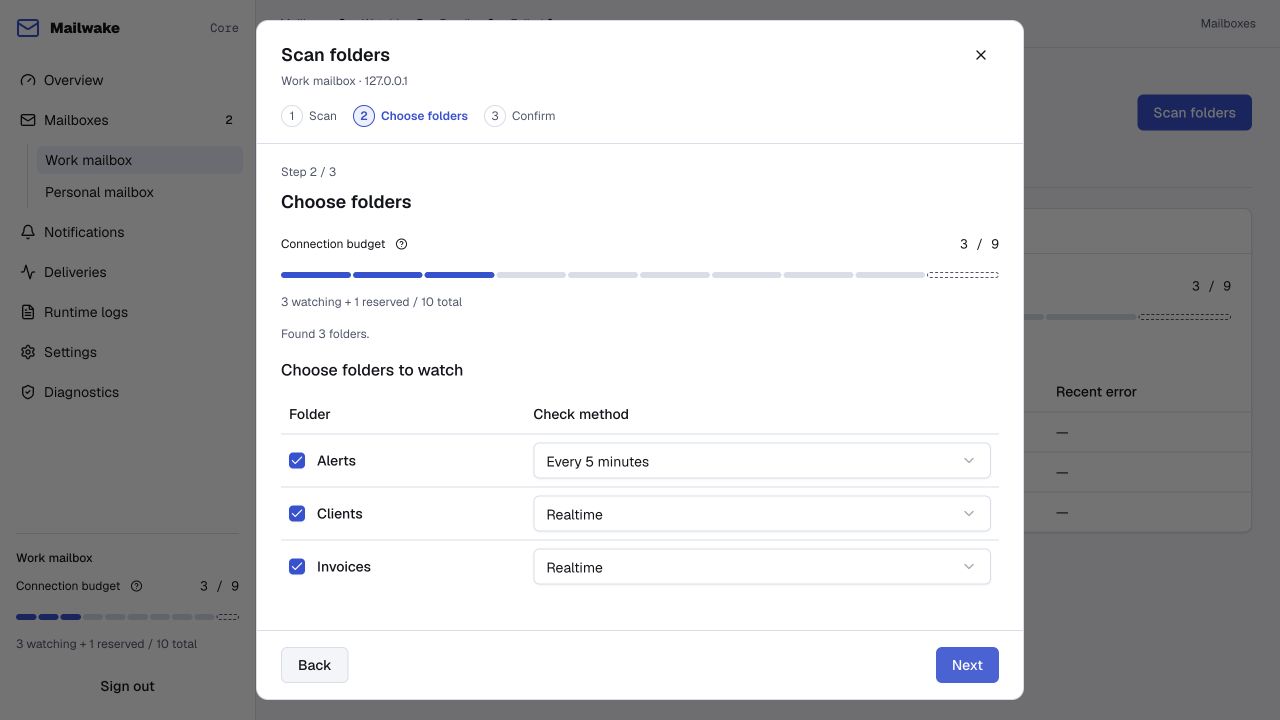
Open the mailbox, choose Scan folders → Start scan, and select the folders that need notifications. If a server-side rule moves customer messages to Clients, select Clients.
- Realtime: for folders that need prompt notifications.
- Every 5 minutes / Every 15 minutes: for receipts or newsletters you can check later.
Choose Next, review the selection, and save. The connection budget shows usage; switch some folders to scheduled checks if you reach the limit.
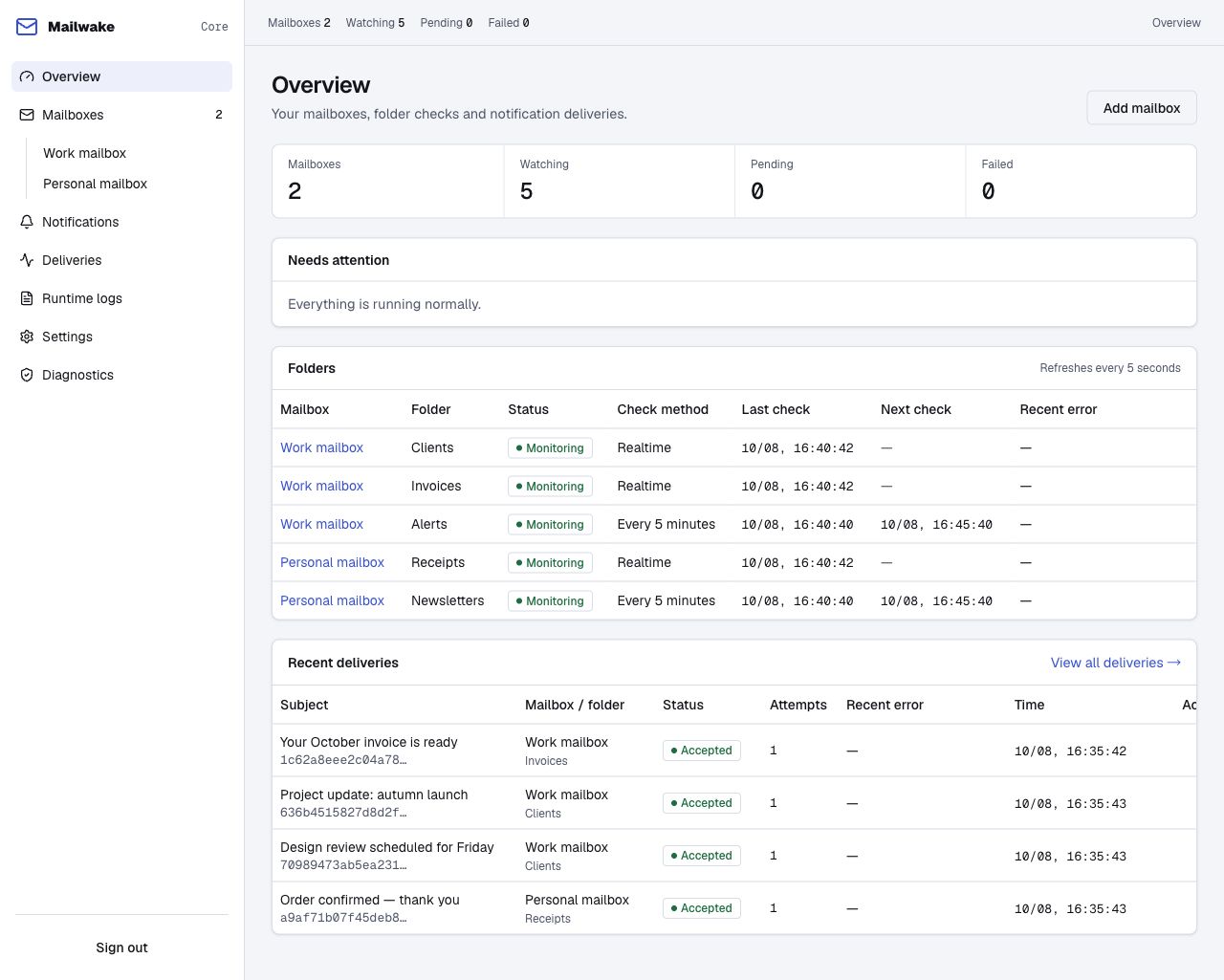
Check the result: Monitoring status lists your selected folders as monitoring, with a last-check time. New subscriptions establish a starting point at the current mailbox position, so existing messages are skipped.
4. Set up Bark notifications
Enable system notifications for Bark on your phone and find its push
URL. For a URL such as
https://api.day.app/your-device-key, select Bark under
Notifications in Core:
-
Set Endpoint to
https://api.day.app, or your own HTTPS Bark server address. - Enter just the device-key portion in Bark device key.
- Choose whether to show email subjects. With previews off, notifications use a generic new-mail message.
Save, choose Send test notification, and check your phone.
Check the result: Core reports that the notification service accepted the request, and the phone shows a test notification. Acceptance records the service response; device display also depends on notification permissions, focus modes and channel status.
For Pushover, enter an application Token and User Key. For Webhook, enter an HTTPS receiver URL and signing secret. See the notification reference for fields and signatures.
5. Verify with a new email
- Keep Core running and confirm Clients is monitoring.
- Send a new email from another mailbox, allowing your server-side rule to move it into Clients.
- Confirm the message is in Clients using webmail or your usual email client.
- Find its entry under Deliveries in Core, then check the phone notification.
Check the result: the notification identifies the mailbox and folder. When subject previews are enabled, it also shows the test subject. Continue reading and replying in your existing email client.
Use a new email for the test. Moving mail received more than 24 hours ago advances monitoring progress without generating a notification. A message appearing in two subscribed folders can generate two folder notifications.
6. Find where delivery stops
- The test notification also fails: check channel credentials, connectivity from Core to the service, and phone notification permissions.
- The test succeeds but new mail has no record: confirm the rule's destination folder is subscribed and check its status and last-check time. Allow the selected interval for scheduled folders.
- Delivery is marked failed: read the reason, correct the channel settings, and retry manually. Automatic retries default to 0 and can be configured in Notifications.
- The mailbox needs authentication: update its app password under Mailbox settings.
Finish by creating your first backup. Console history records notifications; original messages remain in your mailbox.